How to Send Messages in Batches of 20 to Multiple Recipients
Written By Group SMS+
Last updated About 1 year ago
When sending messages to more than 20 recipients, you can control the batch size to ensure your messages are delivered in manageable groups. This guide explains how to configure your messages to send in batches of 20.
Setting Your Batch Size
1. Open a New Message
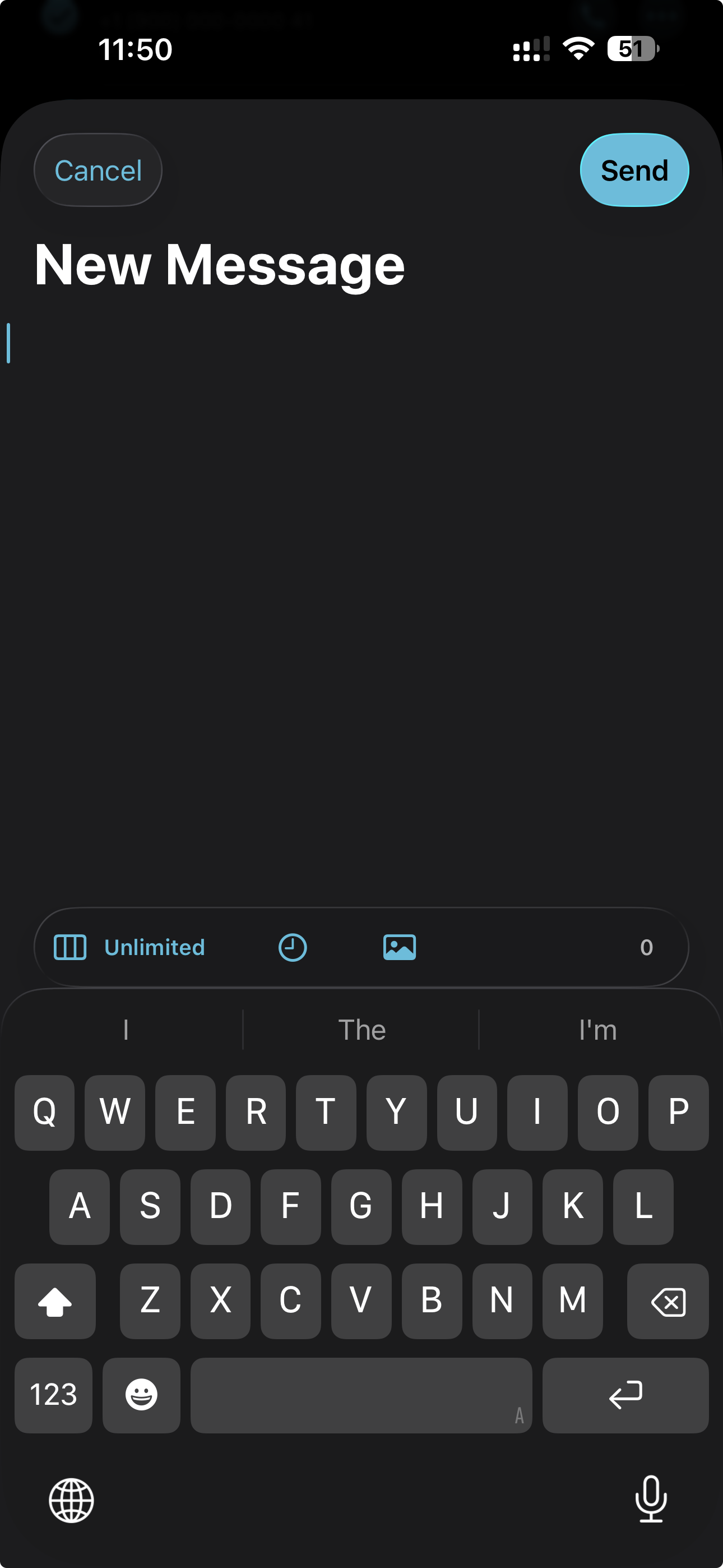
Start by tapping the compose button to create a new message. You'll see the "New Message" screen with your keyboard and message composition area.
2. Access Frame Size Settings
Look for the Frame Size indicator in the toolbar above your keyboard. By default, this may show "Unlimited" or another value. Tap on this indicator to open the Frame Size menu.
3. Select Batch Size of 20
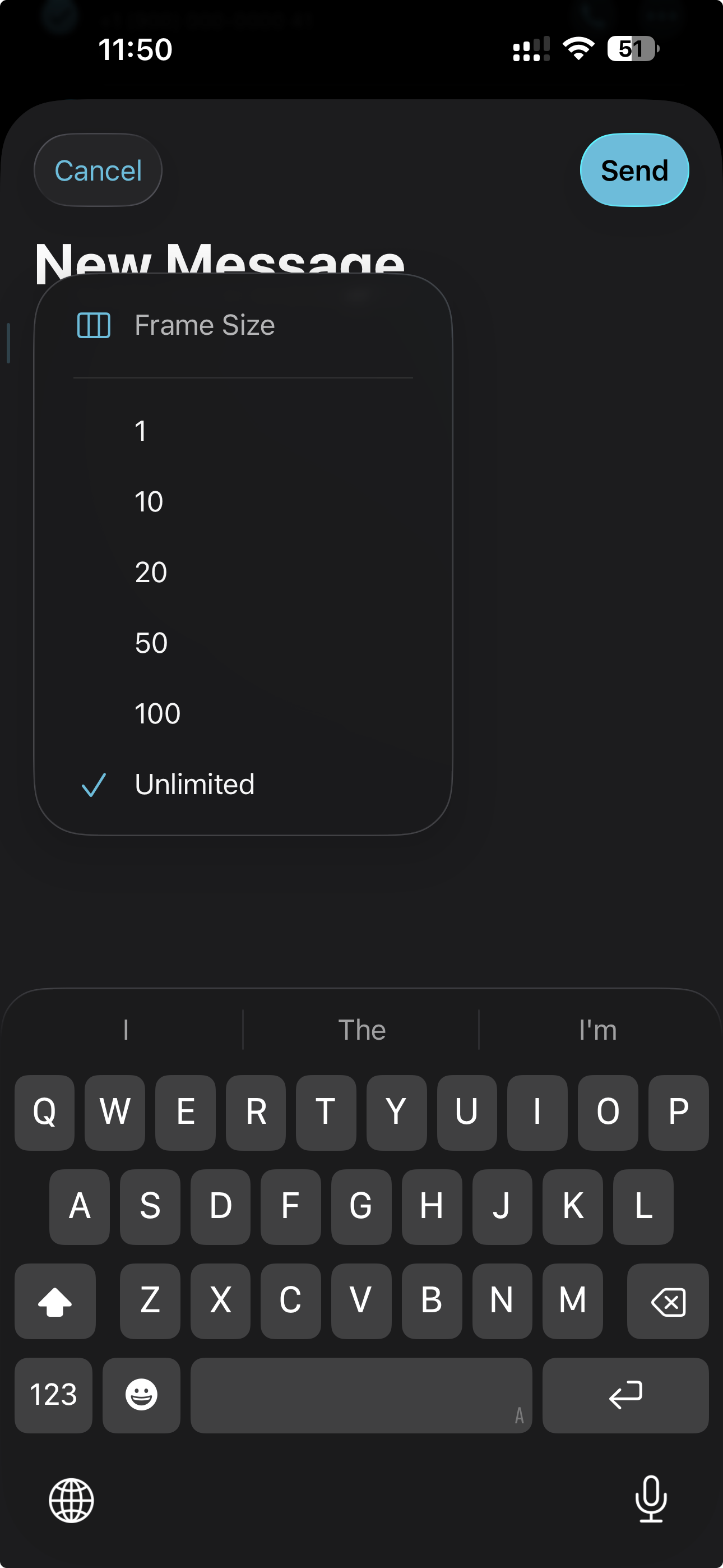
In the Frame Size dropdown menu, tap on "20" to set your batch size. A checkmark will appear next to your selection.
4. Confirm Your Selection
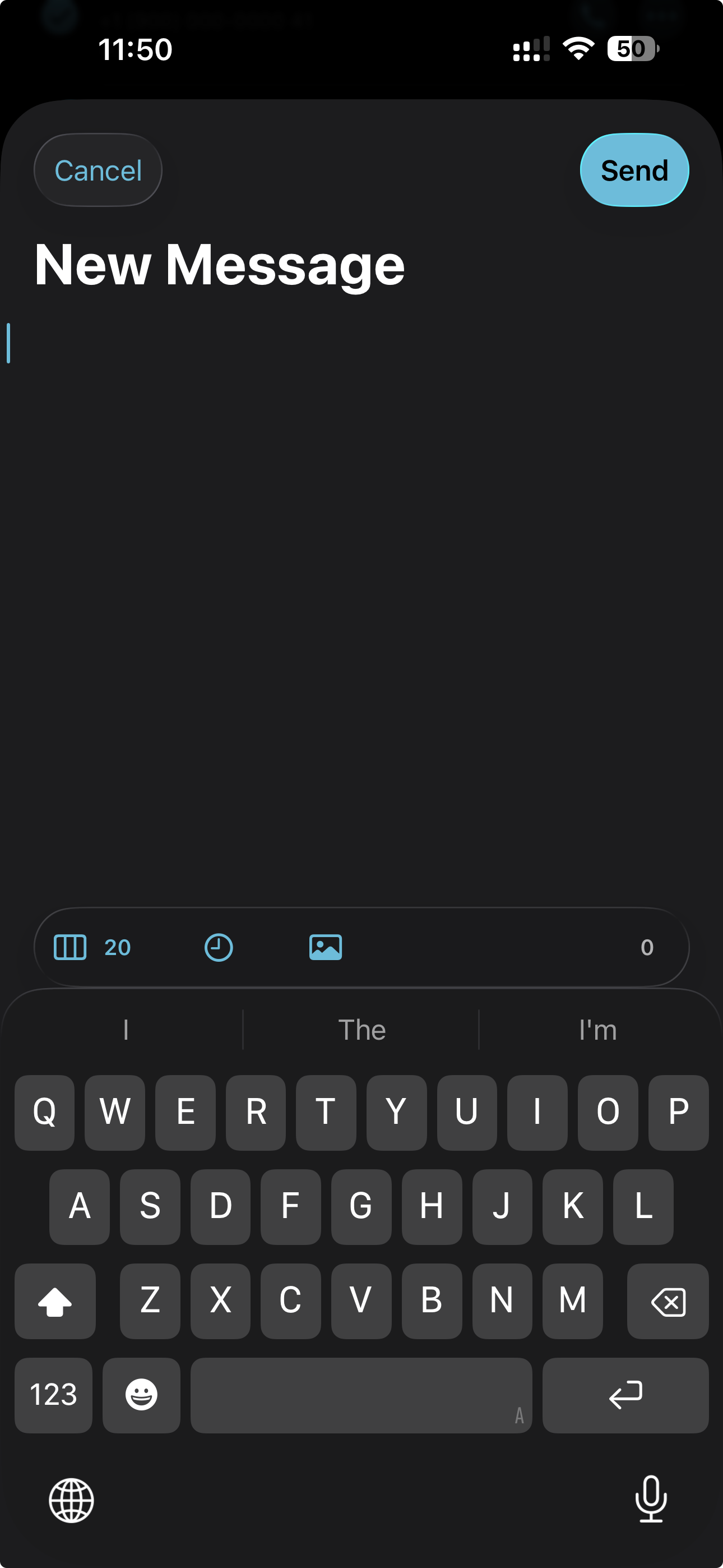
Once you've selected "20", the Frame Size menu will close and you'll return to your message composition screen. The toolbar should now display "20" instead of "Unlimited" or the previous setting.
How Batch Messaging Works
When you send a message to more than 20 recipients with the Frame Size set to 20:
Your recipients will be automatically divided into groups of 20.
Each group will receive the message as a separate batch.
This helps prevent message delivery issues and ensures better performance.
All recipients will still receive the same message content, and may see each other depending on your mobile operator.
Was this helpful?
Still need help? Share an idea