How to Send Messages to More Than 20 People at Once
Written By Group SMS+
Last updated About 1 year ago
Important: Please note that sending group messages to more than 20 users is not guaranteed. For any critical communications, we recommend double-checking with your recipients to confirm they have all received the message.
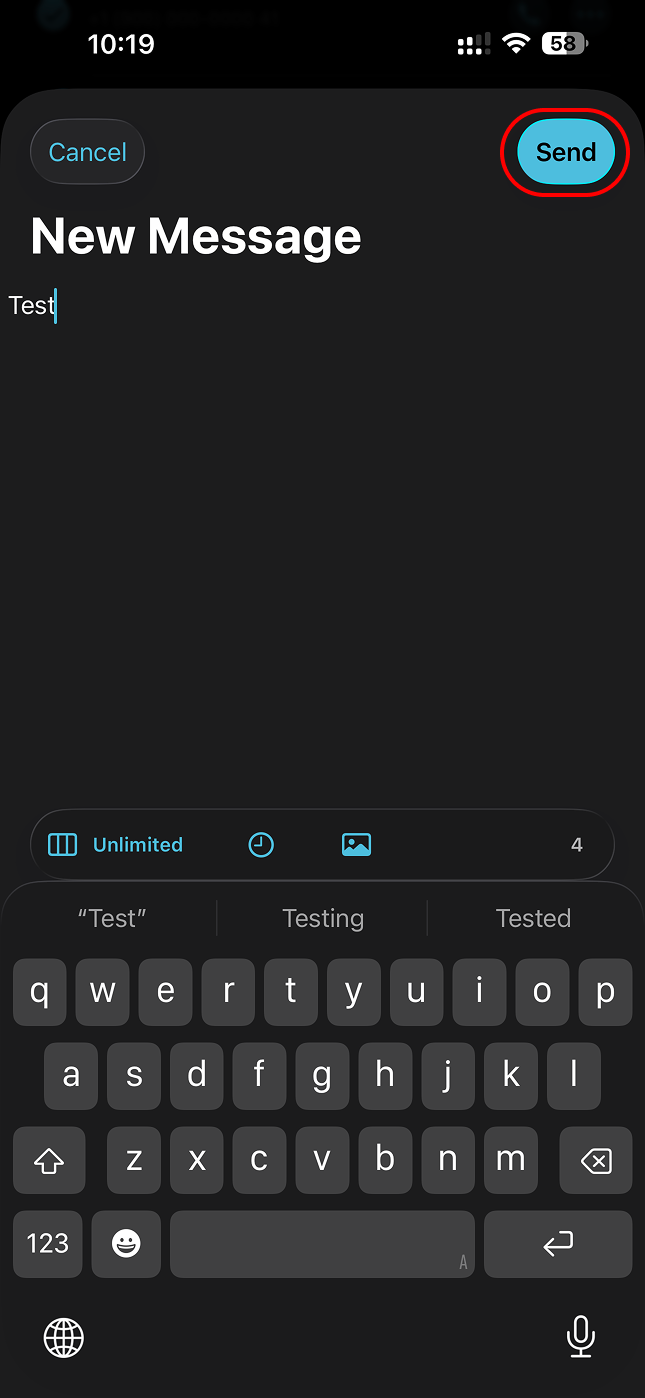
Recent iOS updates may change the location of the "Send" button when you add a large number of recipients. If you do not see it, please follow the workaround below to make it visible again.
Compose the message and tap the "Send" button.
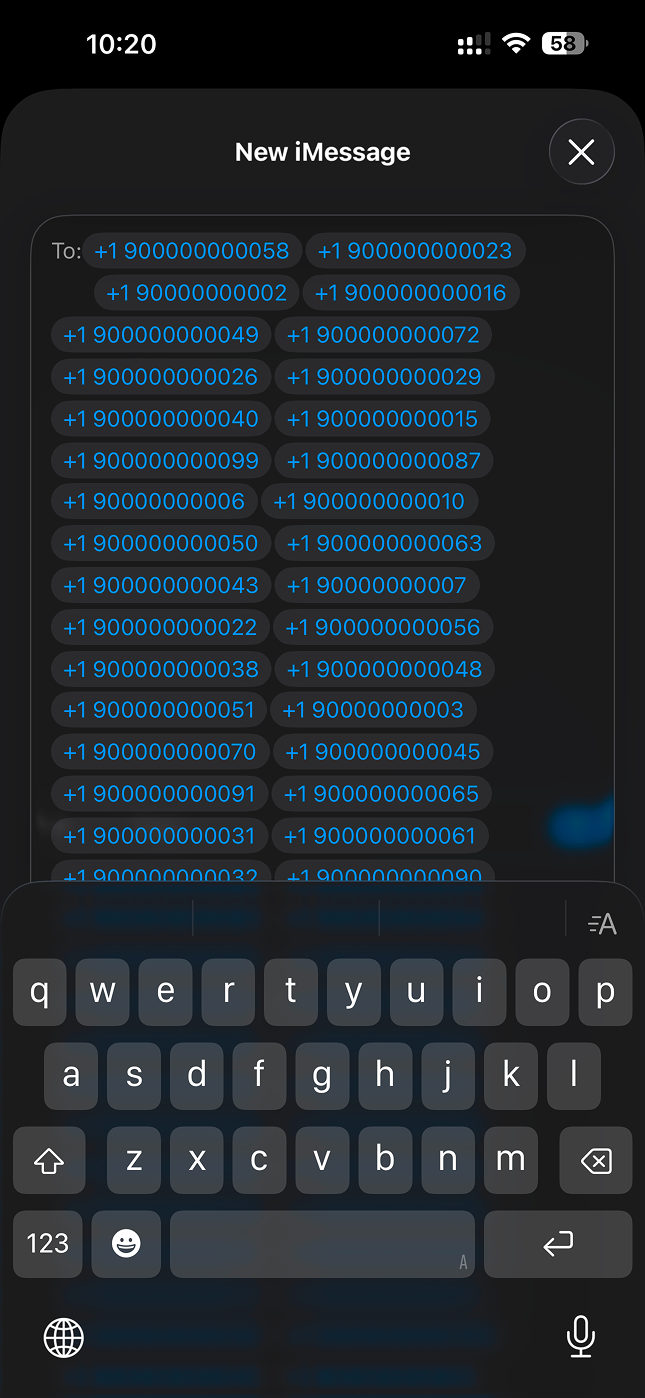
Wait for the message app to recognize the phone numbers. Numbers will appear blue, no matter if recipients are using iMessage, and the keyboard is not responsive.
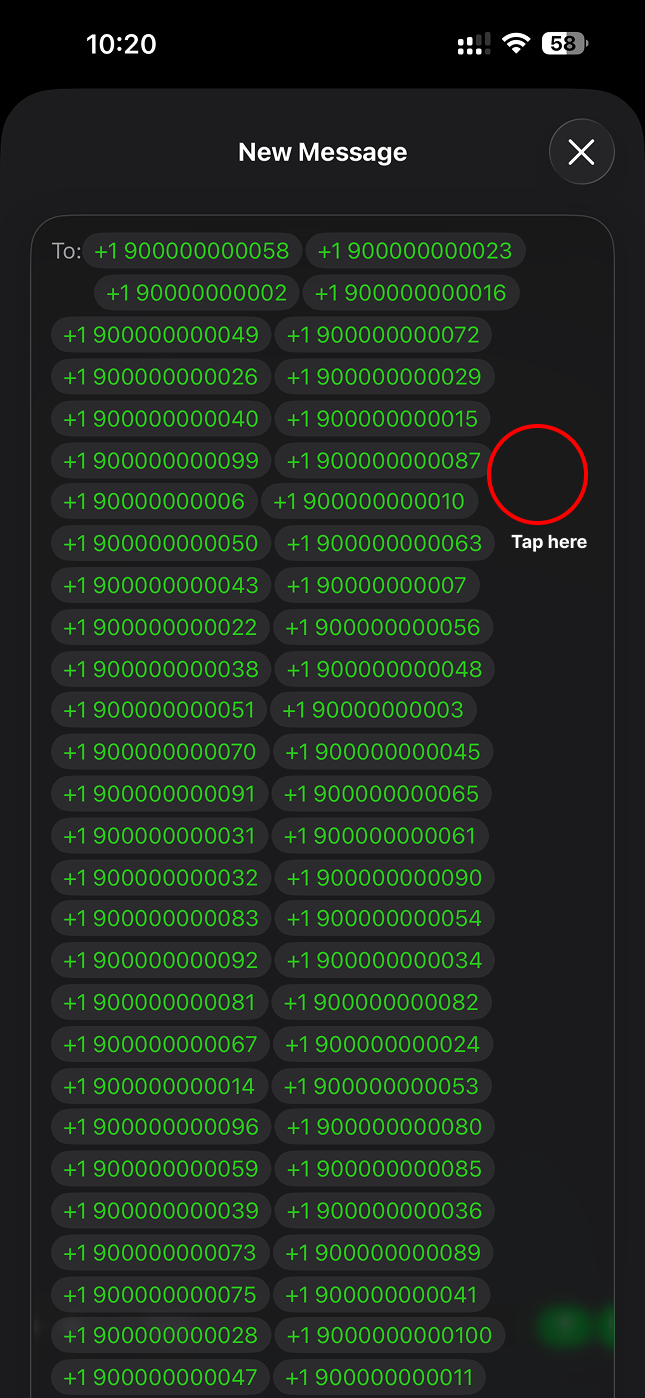
After waiting up to a few minutes (depending on the number of recipients), you'll see the color change to green for recipients not using iMessage. Tap an empty area of the screen.
Tap the + button to open the contact list. This allows you to hide the keyboard.
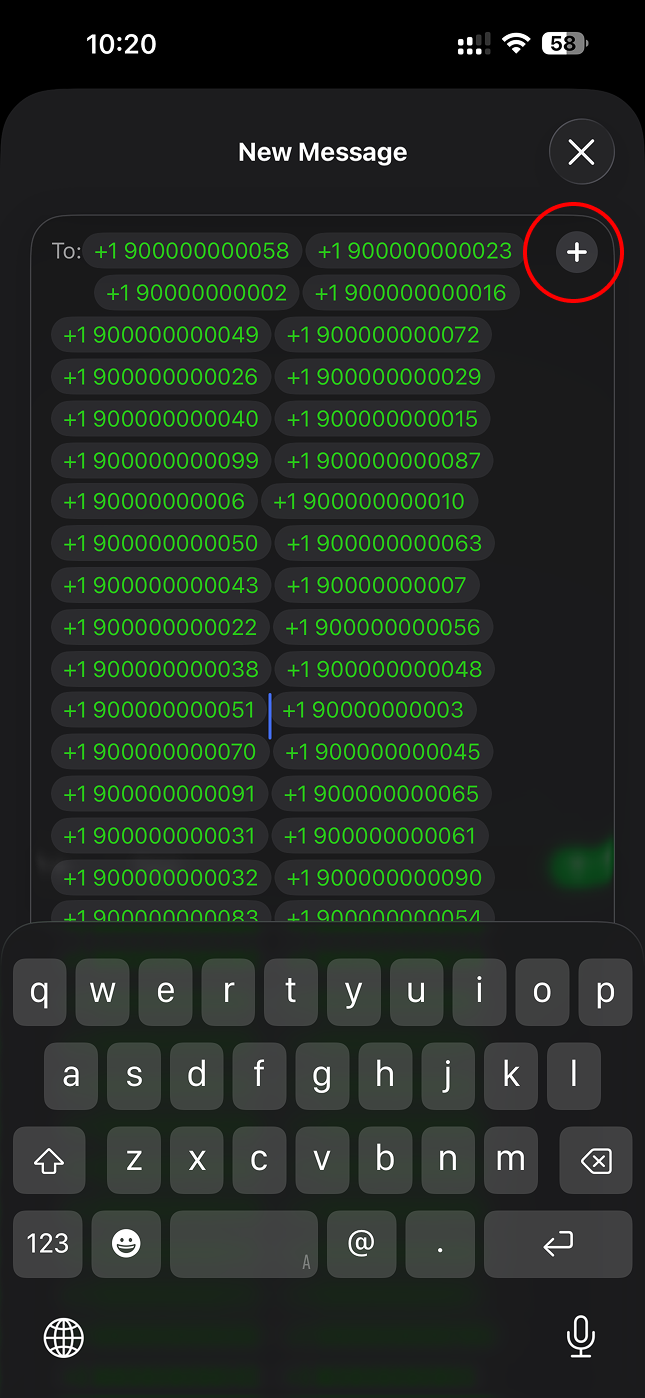
Tap the X button to close the contact list.
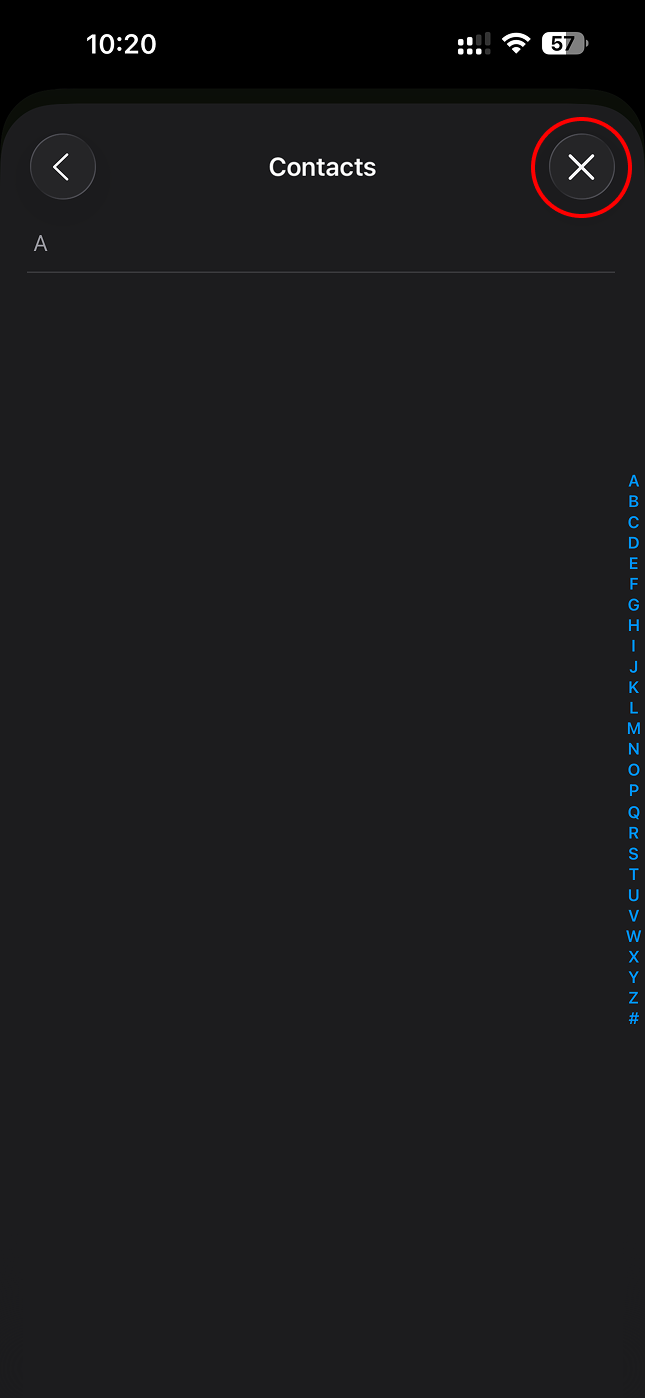
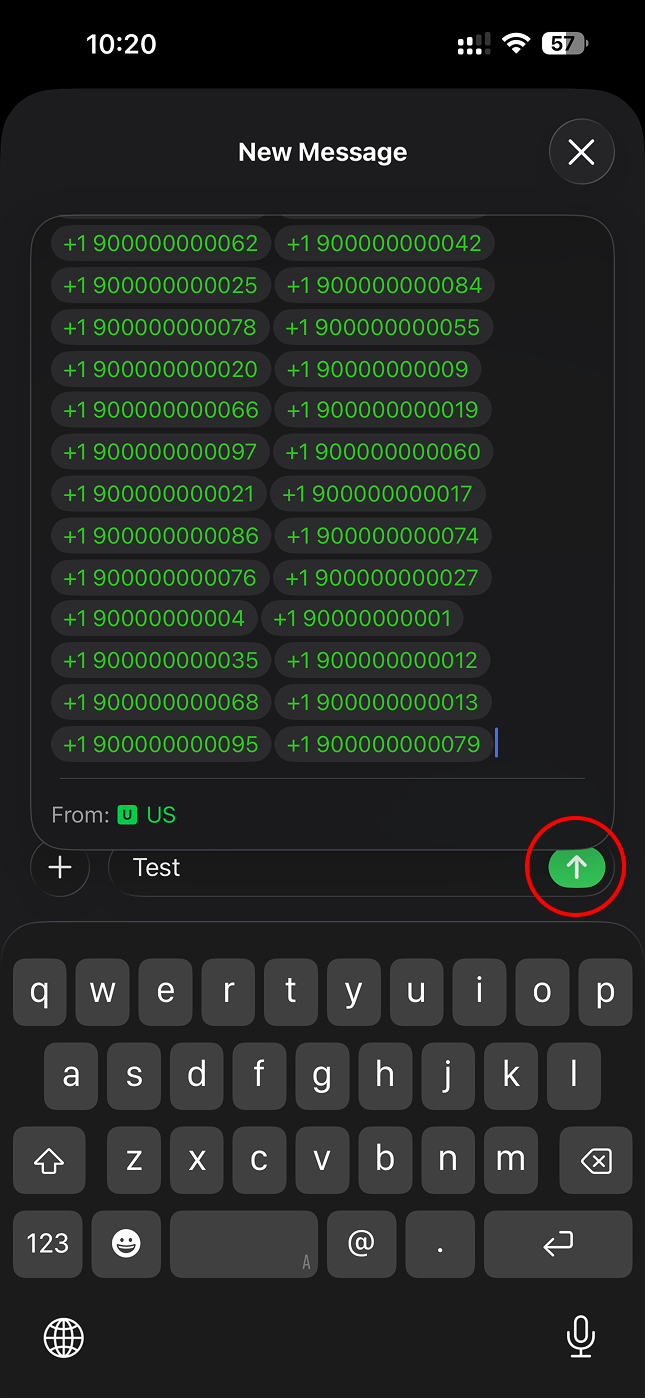
The send button should now be visible. Tap it to send the message.
Was this helpful?
Still need help? Share an idea