How to Import Contacts from a CSV File
Written By Group SMS+
Last updated About 1 year ago
You can quickly add multiple contacts at once by importing them from a CSV (Comma Separated Values) file.
Step 1: Prepare Your CSV File
Before you can import, you must format your spreadsheet and save it as a CSV file. Your file must contain a header row (the first row) with these exact column names:
groupfirst_namelast_namephone_numbernote
Here is an example of what the raw text in your CSV file should look like:
group,first_name,last_name,phone_number,note
Group,Johnny,Applesead,+1 (900) 000-0000,Note
Group,Sam,Davis,+1 (900) 000-0000,Note
Step 2: Import Your Contacts
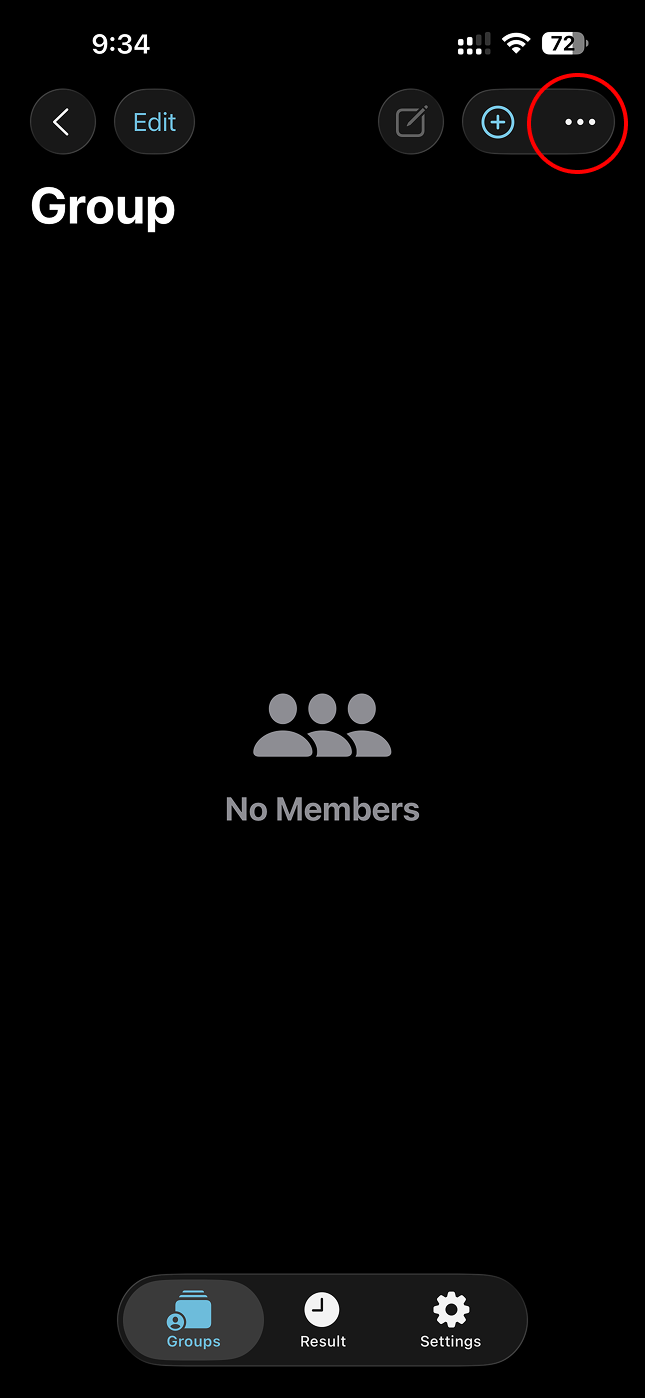
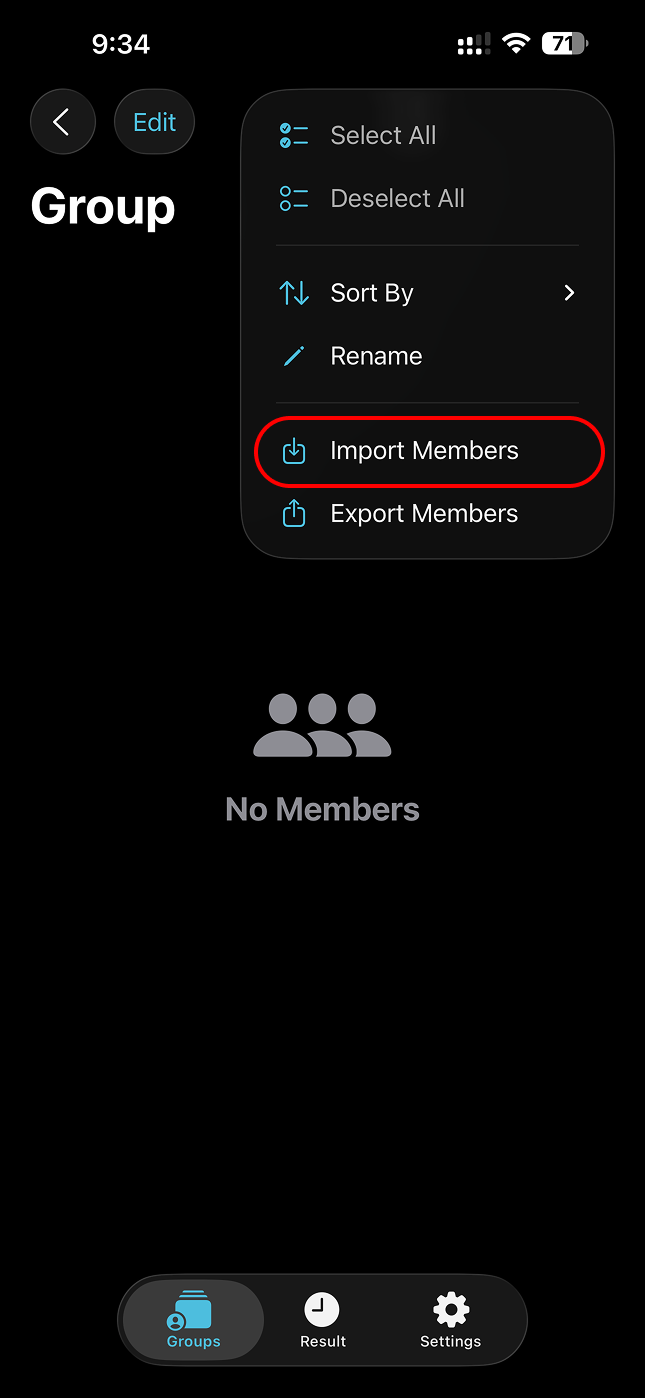
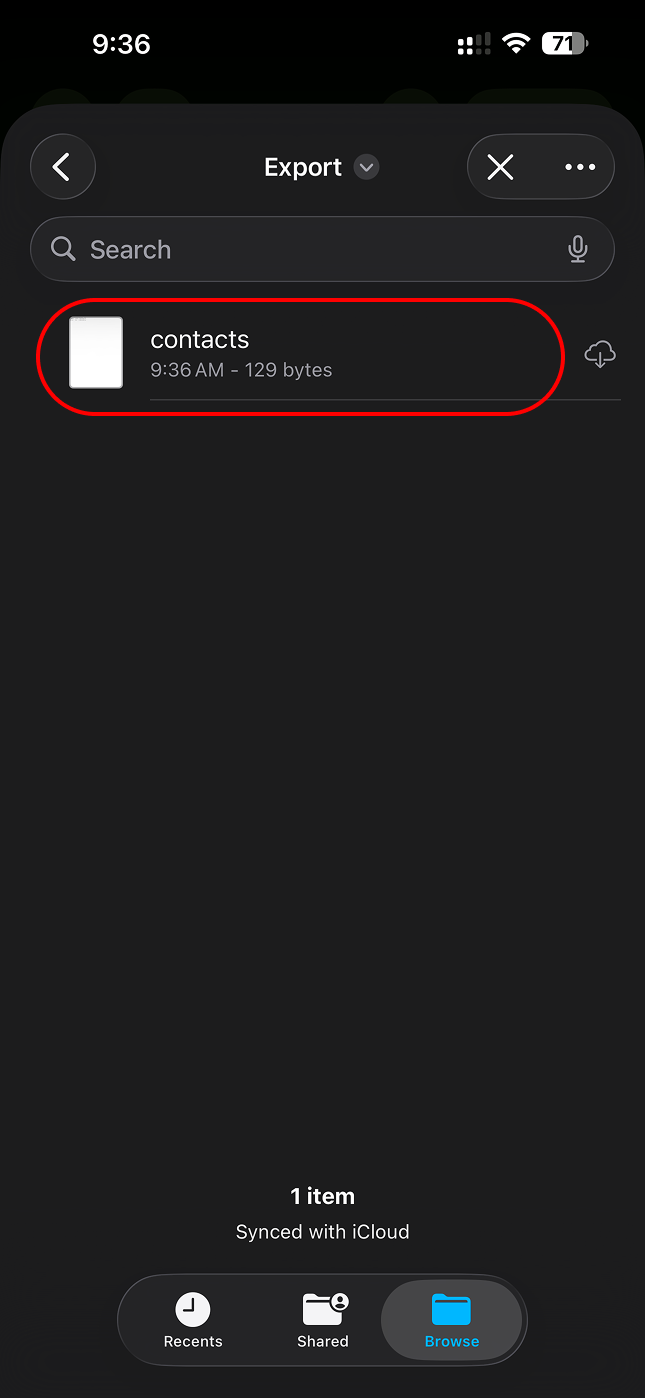
You can import the CSV files via “More” → “Import Members” menu.
 |  |  |
Was this helpful?
Still need help? Share an idea